> ## Documentation Index
> Fetch the complete documentation index at: https://docs.solanamobile.com/llms.txt
> Use this file to discover all available pages before exploring further.
# Mobile NFT Minter Tutorial
> In this tutorial, you will learn how to build a React Native dApp that can mint NFTs from your phone photos.
export const Button = ({href, children}) => {
return
;
};
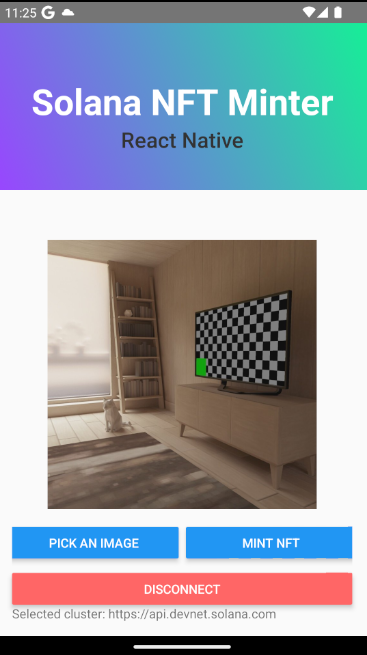
View or download the complete open-source program on Github, or follow this tutorial to build the application from scratch.
## What you will learn
* Integrate the Metaplex JS in a React Native project.
* Use an MWA Identity Signer with Metaplex.
* How to read image files from the OS file system.
* How to upload image and metadata files to IPFS, through NFT.storage.
* Create and mint a Metaplex NFT on-chain.
## Prerequisites
* Complete [prerequisite setup](/get-started/development-setup) for a ready dev environment.
* An Android device/emulator to build and launch a React Native app
* An MWA-compatible wallet installed on the same device/emulator.
* Basic understanding of MWA.
## Project Setup
### 1. Initialize Scaffold
This tutorial builds off the [dApp Scaffold template](https://github.com/solana-mobile/solana-mobile-dapp-scaffold). This template
comes setup with the essential packages like MWA and web3.js.
Initialize the scaffold using the following command:
```shell theme={null}
npx react-native init MobileNFTMinter --template @solana-mobile/solana-mobile-dapp-scaffold --npm
cd MobileNFTMinter
```
**NOTE**
The `--npm` flag is only necessary if you're using newer versions of Yarn (Yarn 2 or Yarn 3).
After running the command, you can simply delete the `package-lock.json` generated and continue using
Yarn.
Next, install the dependencies:
```shell yarn theme={null}
rm package-lock.json
yarn install
```
```shell npm theme={null}
npm install
```
### 2. Install Metaplex JS SDK
The next step is to install the `@metaplex-foundation/js` package. This is the Metaplex JS SDK that provides
a developer friendly API to interact with onchain programs.
Carefully follow the [Metaplex installation](../react-native/metaplex_integration#installation) steps
here to make sure you install the package along with all the necessary polyfill libraries.
### 3. Install dependencies
In addition to the Metaplex JS SDK, the app will use several other libraries that handle other usecases, like file reading,
IPFS, and others. Some of these are opinionated, so feel free to swap out a library with one of your choice.
* [`rn-fetch-blob`](https://github.com/joltup/rn-fetch-blob): A React Native file system reader for converting photos to bytes.
* [`react-native-image-picker`](https://github.com/react-native-image-picker/react-native-image-picker): Provides a convenient Photo selector UI.
* [`react-native-config`](https://github.com/luggit/react-native-config):Used to store and expose the NFT.storage API key to Javascript.
* [`multiformats`](https://github.com/multiformats/js-multiformats): A low-level JS library that provides an API/interface to compute CIDs in IPFS format.
```shell yarn theme={null}
yarn install \
rn-fetch-blob \
react-native-image-picker \
react-native-config \
multiformats
```
```shell npm theme={null}
npm install \
rn-fetch-blob \
react-native-image-picker \
react-native-config \
multiformats
```
### 4. Launch the app
```shell theme={null}
npx react-native run-android
```
At this point, your app should build, install into your device, and launch automatically. If you are seeing errors
about missing/undefined methods, double check you installed the polyfills correctly.
## How does minting work?
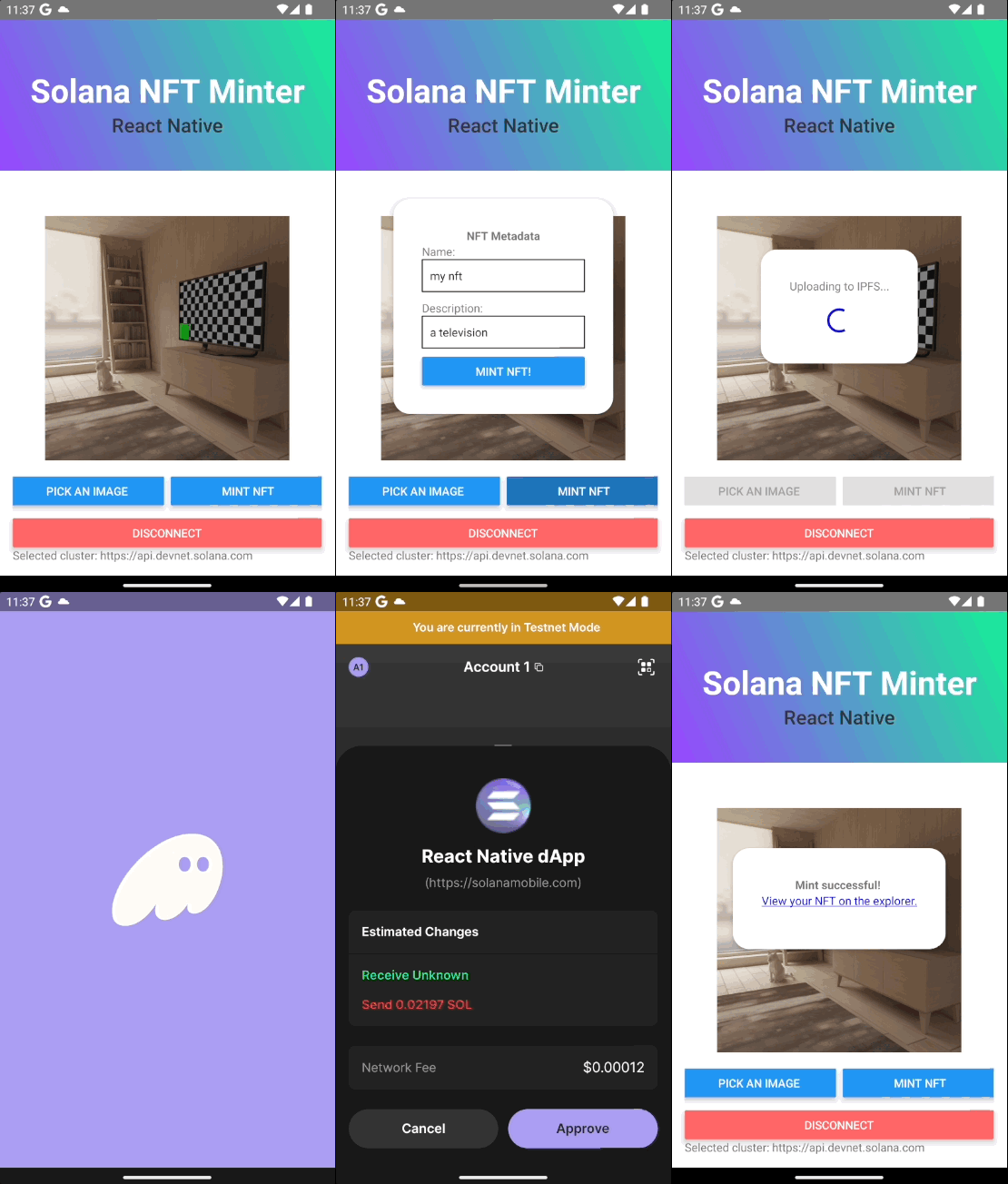
The end to end procedure of minting a photo NFT roughly follows these steps:
Select a photo and upload it to a storage provider.
Upload a JSON object containing metadata that conforms to the [Metaplex NFT
Standard](https://docs.metaplex.com/programs/token-metadata/token-standard#the-non-fungible-standard),
to a storage provider.
Submit a transaction to the network that creates your NFT on chain.
## Uploading to IPFS with NFT.storage
In this tutorial, we choose [IPFS](https://ipfs.tech/), a decentralized storage provider, to host the selected photo and the metadata object.
We'll also be using [NFT.storage](https://nft.storage/docs/) to help upload directly to IPFS, through their [HTTP API](https://nft.storage/docs/client/http/).
You can sign up for a free API key on their website.
### Selecting the photo
You need to select an existing photo from our gallery. To present a picker UI and retrieve the file path, use `launchImageLibrary` from the `react-native-image-picker` library.
**INFO**
In the example app, this is done within the `NftMinter` component where `handleSelectImage` is called on a [button press](https://github.com/solana-mobile/tutorial-apps/blob/main/MobileNFTMinter/components/NftMinter.tsx#L44).
We save the image path as state, to be used in the next step.
```tsx theme={null}
import { launchImageLibrary } from "react-native-image-picker";
const photo = await launchImageLibrary({
selectionLimit: 1,
mediaType: "photo",
});
const selectedPhoto = photo?.assets?.[0];
if (!selectedPhoto?.uri) {
console.warn("Selected photo not found");
return;
}
const imagePath = selectedPhoto.uri;
```
### Upload the photo
Now that we have the image path, we need to upload the raw bytes of the file to IPFS, using the NFT.storage `/upload` endpoint.
The steps:
Use the `rn-fetch-blob` library to read the image file into a Base 64
string.
Convert to raw bytes by decoding the Base64 string with `Buffer`.
Use `fetch` to send a request containing the image bytes to the upload
endpoint.
**INFO**
In the example app, this is handled in a separate helper function [`uploadToIPFS`](https://github.com/solana-mobile/tutorial-apps/blob/main/MobileNFTMinter/ipfs/uploadToIPFS.ts#L7), which is called
later within the larger the [`mintNft`](https://github.com/solana-mobile/tutorial-apps/blob/main/MobileNFTMinter/components/NftMinter.tsx#L61) function.
**CAUTION**
During this step, you'll need to provide your own API key from NFT.storage. In the example app, the `NFT_STORAGE_API_KEY` value is set through
an environment variable config, using the `react-native-config` library.
```tsx expandable theme={null}
// Read the image file and get the base64 string.
const imageBytesInBase64: string = await RNFetchBlob.fs.readFile(
imagePath,
"base64",
);
// Convert base64 into raw bytes.
const bytes = Buffer.from(imageBytesInBase64, "base64");
// Upload the image to IPFS by sending a POST request to the NFT.storage upload endpoint.
const headers = {
Accept: "application/json",
Authorization: `Bearer ${Config.NFT_STORAGE_API_KEY}`,
};
const imageUpload = await fetch("https://api.nft.storage/upload", {
method: "POST",
headers: {
...headers,
"Content-Type": "image/jpg",
},
body: bytes,
});
const imageData = await imageUpload.json();
console.log(imageData.value.cid);
```
If successful, the `imageData.value.cid` will contain a valid [CID (Content Identifier)](https://docs.ipfs.tech/concepts/content-addressing/). This is a string that
uniquely identifies your uploaded asset.
You can view your uploaded asset on an [IPFS gateway](https://docs.ipfs.tech/concepts/ipfs-gateway/) by passing in the CID in the URL (e.g: `https://ipfs.io/ipfs/`).
View an [example](https://ipfs.io/ipfs/bafkreicdv4jt7oaah73kvjfnm4f2yd5klbnyehlkpi33kxjakdo6encepe) of an uploaded photo on ipfs.io.
### Uploading the metadata
Next, we need to construct a metadata object that conforms to the [Metaplex NFT Standard](https://docs.metaplex.com/programs/token-metadata/token-standard#the-non-fungible-standard), then
upload it to the same `/upload` endpoint.
Metadata fields:
* Name: The name of the NFT.
* Description: A description of the NFT.
* Image: A URL that hosts the photo. In this case, we use an `ipfs.io` URL with the CID of the uploaded photo.
**INFO**
In the example app, the metadata upload step is also handled within the [`uploadToIPFS`](https://github.com/solana-mobile/tutorial-apps/blob/main/MobileNFTMinter/ipfs/uploadToIPFS.ts#L37) function.
There is a slight difference that should be noted. The `image` field uses a precomputed CID for the photo, rather than waiting for the photo upload to finish.
This is an optimization that is explained in the next section.
```tsx expandable theme={null}
// Construct the metadata fields.
const metadata = JSON.stringify({
name,
description,
image: `https://ipfs.io/ipfs/${imageData.value.cid}`,
});
// Upload to IPFS
const metadataUpload = await fetch("https://api.nft.storage/upload", {
method: "POST",
headers: {
...headers,
"Content-Type": "application/json",
},
body: metadata,
});
const metadataData = await metadataUpload.json();
console.log(metadataData.value.cid);
```
If successful, `metadataData.value.cid` will now contain a CID that points to a JSON object representing the NFT metadata. View an [example](https://ipfs.io/ipfs/bafkreidbymwcjxntxak7wkxvblzgtaivg2ktef47i3nfcqtbw4but5ufhe) of an uploaded metadata object.
To recap, we now have two CIDs that are viewable on IPFS. First, the CID of our uploaded photo, and second, the CID of
JSON Metadata (which has a reference to the photo CID in the `image` field).
### Precomputing the CID
You may notice in the example app, that during the upload step in [`uploadToIPFS`](https://github.com/solana-mobile/tutorial-apps/blob/main/MobileNFTMinter/ipfs/uploadToIPFS.ts#L50)
we're able to precompute the CID of the photo asset before actually uploading it to IPFS. This is an optimization that allows us to
construct and upload the metadata object, without waiting for the photo upload to complete and return the CID.
We take advantage of this by uploading both the photo and metadata asynchronously.
```tsx theme={null}
// Fire off both uploads aysnc
return Promise.all([
imageUpload.then((response) => response.json()),
metadataUpload.then((response) => response.json()),
]);
```
**TIP**
This is made possible because CIDs are generated deterministically from the binary data of any given asset. This mean we can compute the CID of an asset before
uploading it to IPFS.
To compute the CID from the bytes of a given asset, see the [`getCid`](https://github.com/solana-mobile/tutorial-apps/blob/main/MobileNFTMinter/ipfs/getCid.ts) function.
```tsx expandable theme={null}
import { CID, hasher } from "multiformats";
const crypto = require("crypto-browserify");
const SHA_256_CODE = 0x12;
const IPLD_RAW_BINARY_CODE = 0x55;
const getCid = async (bytes: Buffer) => {
const sha256 = hasher.from({
// As per multiformats table
// https://github.com/multiformats/multicodec/blob/master/table.csv#L9
name: "sha2-256",
code: SHA_256_CODE,
encode: (input) =>
new Uint8Array(crypto.createHash("sha256").update(input).digest()),
});
const hash = await sha256.digest(bytes);
const cid = await CID.create(1, IPLD_RAW_BINARY_CODE, hash);
return cid;
};
```
## Minting the NFT
At this point we have completed the IPFS uploading steps and all that is left is to mint the NFT on chain. To do so,
we'll use the Metaplex JS SDK.
### Create a Metaplex Instance
To interact with Metaplex onchain programs, instantiate a `Metaplex` instance provided by the SDK.
Follow this [section](../react-native/metaplex_integration#using-mwa-as-an-identity-driver) in the Metaplex guide, to create an MWA Identity Signer plugin. We'll need
this so that the `Metaplex` instance will be able to request wallet signing through MWA.
**INFO**
In the example app, this is handled in two files:
[`mwaPlugin`](https://github.com/solana-mobile/tutorial-apps/blob/main/MobileNFTMinter/metaplex-util/mwaPlugin.ts): A helper file that installs a `MetaplexPlugin` using MWA as an identity signer.
[`useMetaplex`](https://github.com/solana-mobile/tutorial-apps/blob/main/MobileNFTMinter/metaplex-util/useMetaplex.tsx): A React hook that vends a `Metaplex` instance with the `mobileWalletAdapterIdentity` installed.
Like in the example app, create the `Metaplex` instance with the `useMetaplex` hook.
```tsx theme={null}
import useMetaplex from "../metaplex-util/useMetaplex";
const { metaplex } = useMetaplex(connection, selectedAccount, authorizeSession);
```
### Create the NFT
With the `metaplex` instance, we can now access the `nfts()` module that provides [a collection of functions](https://docs.metaplex.com/programs/token-metadata/getting-started#javascript-sdk) that
make it simple to interact with on chain programs and submit transactions.
To mint an NFT, call the `create` function which takes in a JSON object corresponding to the [Token Metadata Standard](https://docs.metaplex.com/programs/token-metadata/changelog/v1.0#token-metadata-program).
This will prompt the user to sign a transaction using MWA, then submit the transaction to the specified RPC.
**INFO**
In the example app, this step happens at the end of [`mintNft`](https://github.com/solana-mobile/tutorial-apps/blob/main/MobileNFTMinter/components/NftMinter.tsx#L84C1-L90C59).
We return the NFT address and present a [clickable explorer link](https://github.com/solana-mobile/tutorial-apps/blob/main/MobileNFTMinter/components/NftMinter.tsx#L159).
```tsx theme={null}
const { nft, response } = await metaplex.nfts().create({
name: nftName,
uri: `https://ipfs.io/ipfs/${metadataUploadData.value.cid}`,
sellerFeeBasisPoints: 0,
tokenOwner: selectedAccount?.publicKey,
});
console.log(nft.address.toBase58());
console.log(response.signature);
```
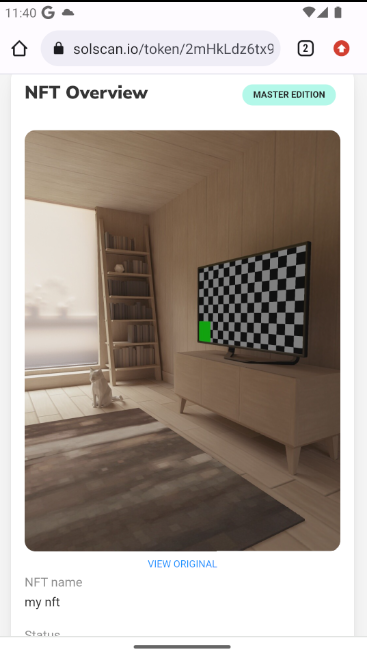
**Congrats!**
Your NFT should now be minted and viewable on chain! You can view it on a block explorer by pasting in the String from `nft.address.toBase58()`.