> ## Documentation Index
> Fetch the complete documentation index at: https://docs.solanamobile.com/llms.txt
> Use this file to discover all available pages before exploring further.
# Submit a New App
> Use the [Solana dApp Publisher Portal](https://publish.solanamobile.com) to submit your dApp to the Solana dApp Store.
## Before you begin
Ensure you have:
* A release-ready APK file signed with your release key.
* App metadata prepared (name, description, screenshots, icon).
* A Solana wallet browser extension (Phantom, Solflare, etc.) with sufficient SOL.
* Reviewed the [Publisher Policy](#publisher-policy) and [Developer Agreement](#agreement)
## 1. Sign up for a Publisher Account
* Navigate to the [Publisher Portal](https://publish.solanamobile.com) and sign up for an account.
* Fill out your publisher profile and submit your KYC/KYB verification.
## 2. Connect your publisher wallet
* Connect a Solana wallet via a browser extension wallet (e.g Phantom, Solflare, Backpack). This will be your *publisher wallet*.
* Ensure the publisher wallet has sufficient SOL (\~0.2 SOL) to cover transaction fees and ArDrive upload costs.
**WARNING**
Your publisher wallet is required for all future submissions of this app. Do not lose access to it or you will not be able
to make new submissions of this app.
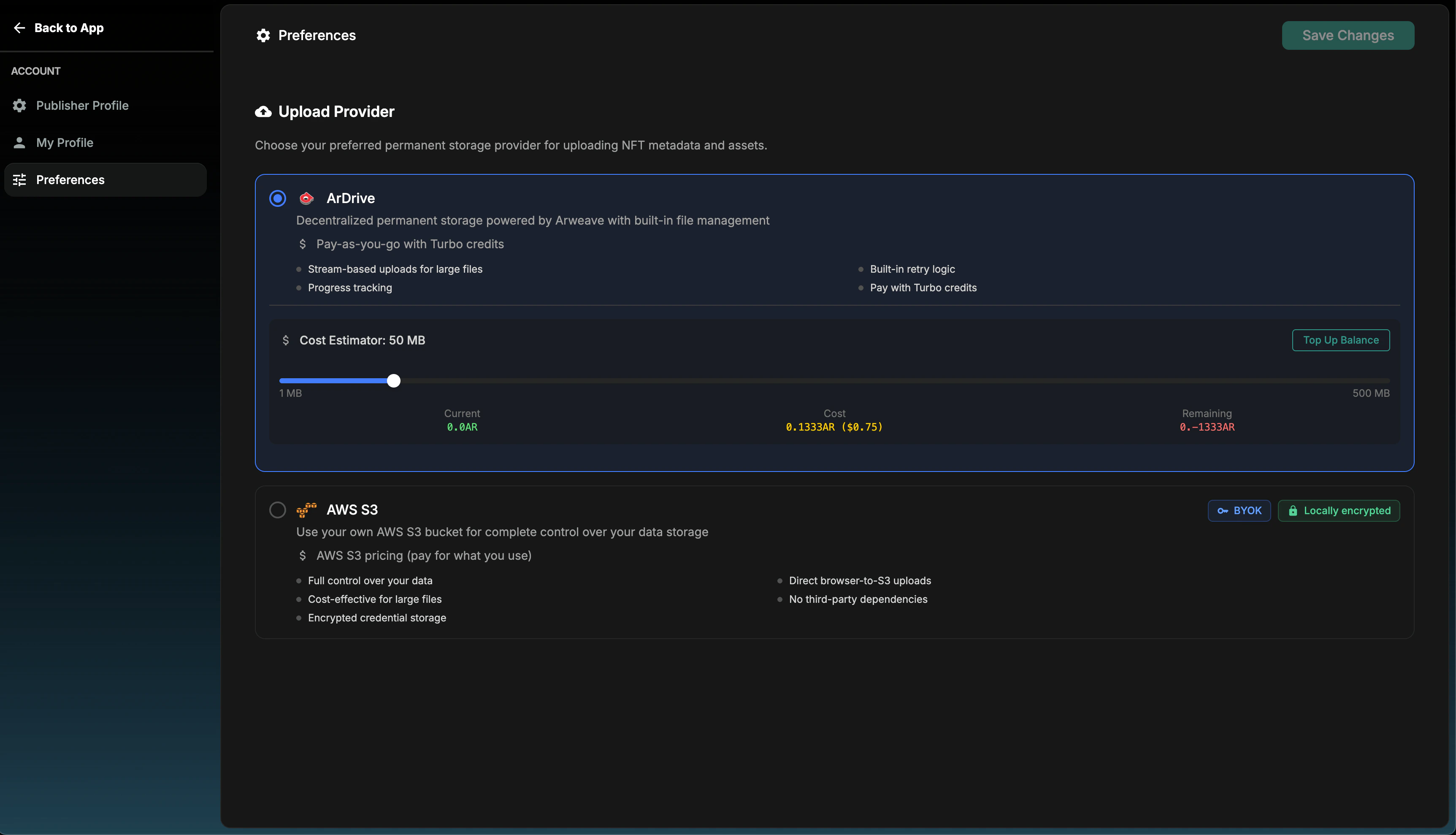
## 3. Set a storage provider
Your storage provider selection determines where all your dApp assets (e.g APK file, Icon, Description, Preview Images/Videos, etc) are uploaded and stored during app submission.
**ArDrive is recommended** for storage costs and ease of setup.
Use the storage cost tool to estimate the SOL amount required for upload based on your app's size.
 ## 4. Add your dApp details
In the bottom-left menu, press "Add a dApp" > "New dApp" and a form will appear where you can input your app details.
## 4. Add your dApp details
In the bottom-left menu, press "Add a dApp" > "New dApp" and a form will appear where you can input your app details.
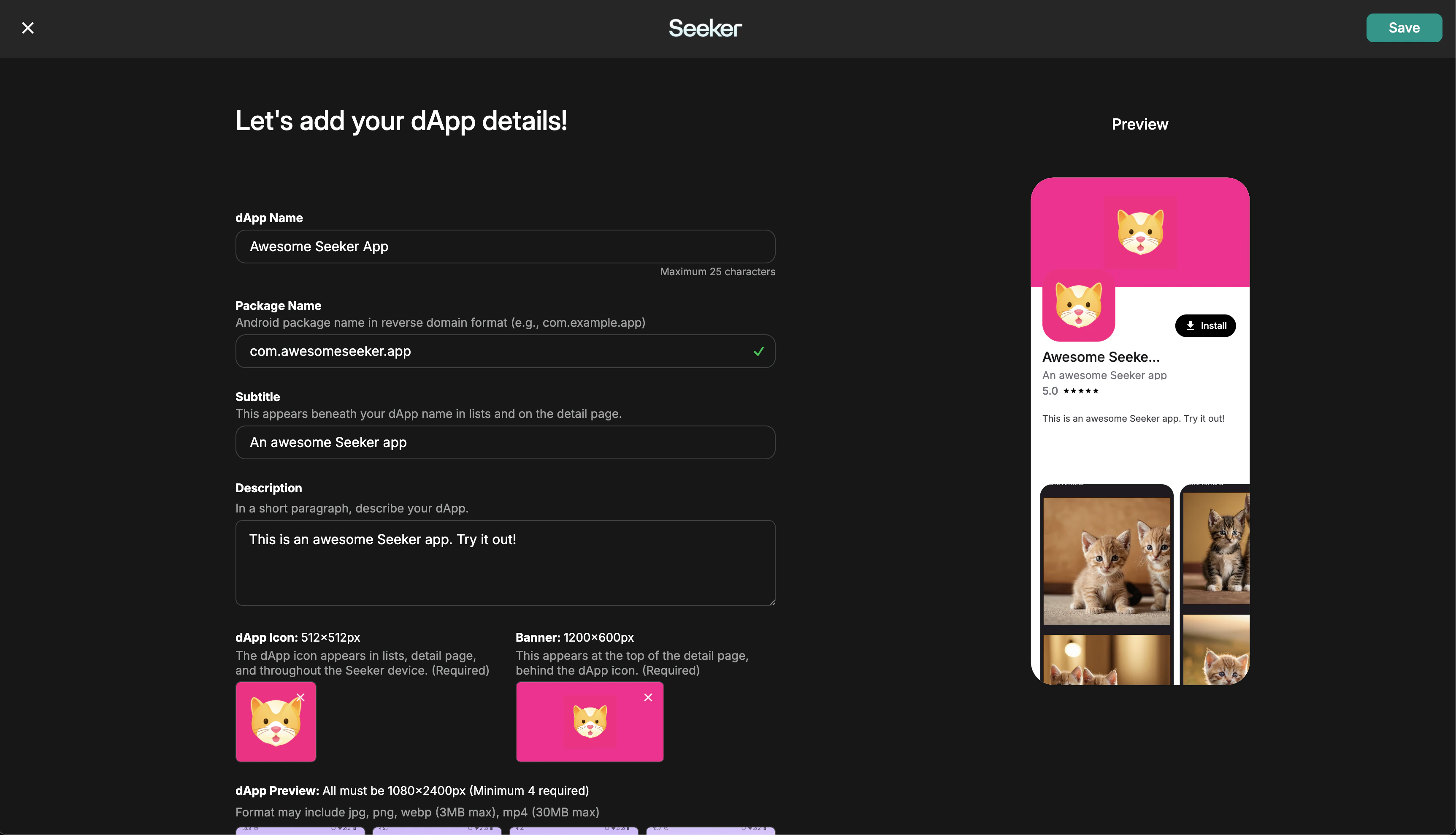 Save the form once you've filled out the details. These details can be changed before submission and updated in later submissions.
See [Listing Page Guidelines](#listing-page-guidelines) for detailed requirements.
## 5. Submit your first release version
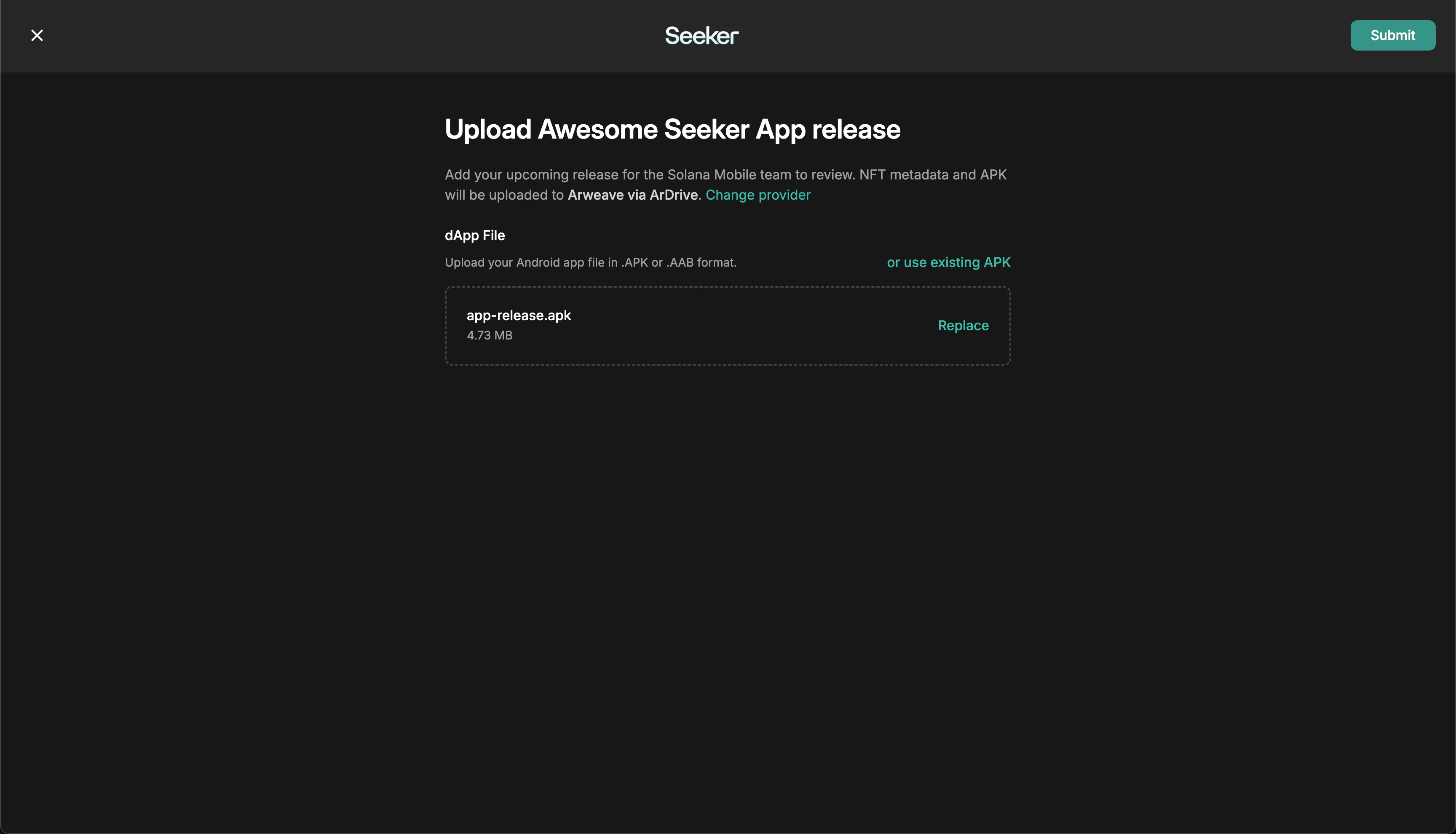
After adding your dApp, navigate to the app's **Home** menu in the sidebar. In the top-right, press the "New Version" button to begin the APK upload process.
Save the form once you've filled out the details. These details can be changed before submission and updated in later submissions.
See [Listing Page Guidelines](#listing-page-guidelines) for detailed requirements.
## 5. Submit your first release version
After adding your dApp, navigate to the app's **Home** menu in the sidebar. In the top-right, press the "New Version" button to begin the APK upload process.
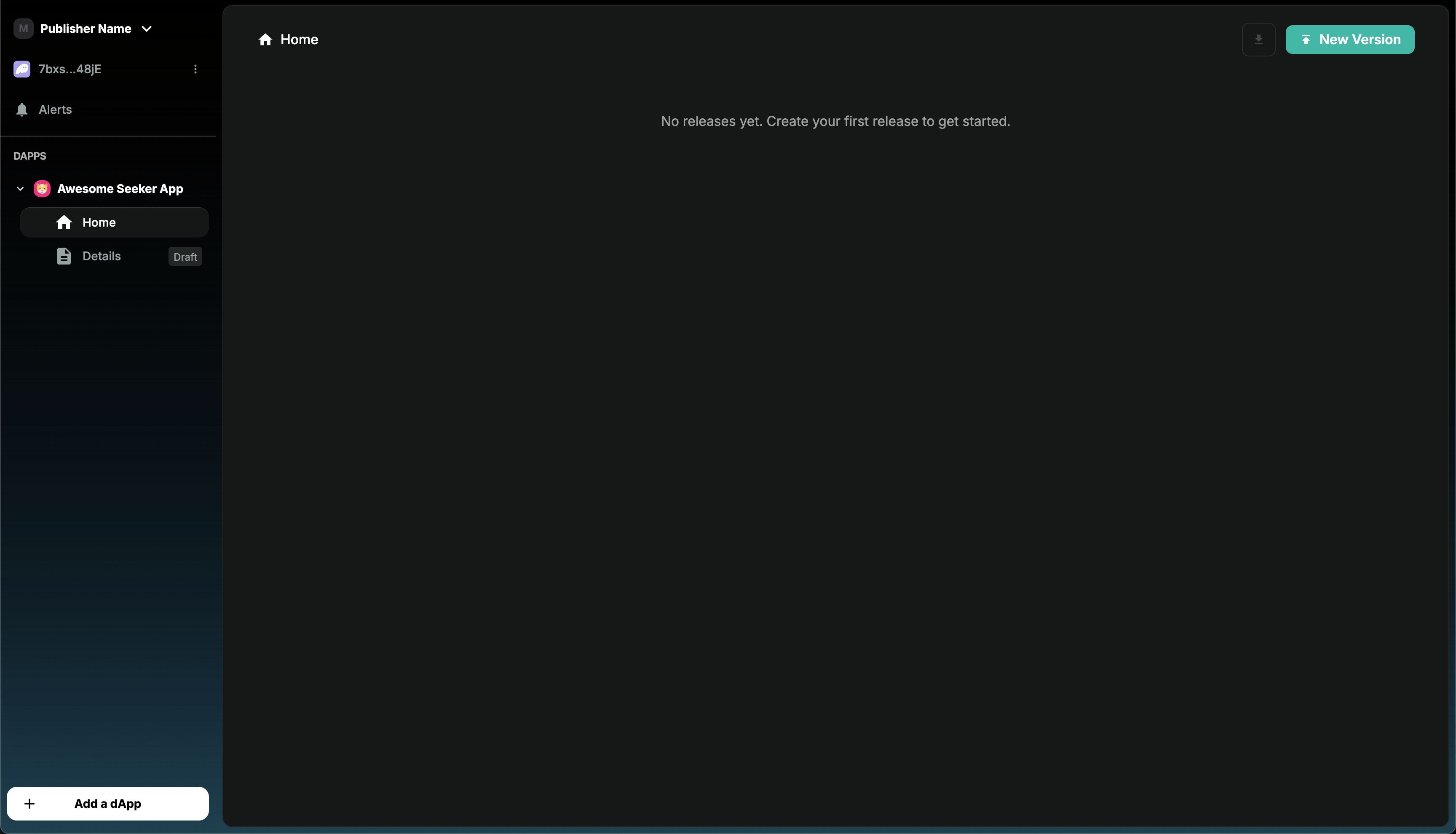 After uploading your APK and pressing "Submit", you will be prompted to sign multiple messages and transactions. These are required for uploading assets to Arweave and minting your release NFT.
**WARNING**
Ensure you approve each signing request and you do not skip any or else certain assets could be missing from your app submission.
After uploading your APK and pressing "Submit", you will be prompted to sign multiple messages and transactions. These are required for uploading assets to Arweave and minting your release NFT.
**WARNING**
Ensure you approve each signing request and you do not skip any or else certain assets could be missing from your app submission.
 Congratulations on submitting your first app! 🎉
## After Submission
Once submitted, your app automatically enters the app review queue and will go live immediately under an appropriate category once approved.
### App Review
* Review results are sent to your developer email from `publishersupport@dappstore.solanamobile.com` within 3-5 business days.
* Apps are reviewed in the order they are submitted.
* If you haven't received a response after 5 business days, submit an **App Review Inquiry** in the `#dev-answers` channel on [Discord](http://discord.gg/solanamobile).
### Get Support
For questions about publishing, app review, or launching on the dApp Store, see the [dApp Store Support](/dapp-store/support) page.
Join the [Solana Mobile Discord](http://discord.gg/solanamobile), get the **Developer** role, and use the `#dev-answers` channel for assistance.
Congratulations on submitting your first app! 🎉
## After Submission
Once submitted, your app automatically enters the app review queue and will go live immediately under an appropriate category once approved.
### App Review
* Review results are sent to your developer email from `publishersupport@dappstore.solanamobile.com` within 3-5 business days.
* Apps are reviewed in the order they are submitted.
* If you haven't received a response after 5 business days, submit an **App Review Inquiry** in the `#dev-answers` channel on [Discord](http://discord.gg/solanamobile).
### Get Support
For questions about publishing, app review, or launching on the dApp Store, see the [dApp Store Support](/dapp-store/support) page.
Join the [Solana Mobile Discord](http://discord.gg/solanamobile), get the **Developer** role, and use the `#dev-answers` channel for assistance.